 Moat
Moat

✦ Key takeaways
- ✓ Treat 2FA as its own migration step — don't assume the phone transfer carries it.
- ✓ Golden rule: don't wipe the old phone until codes are verified on the new one.
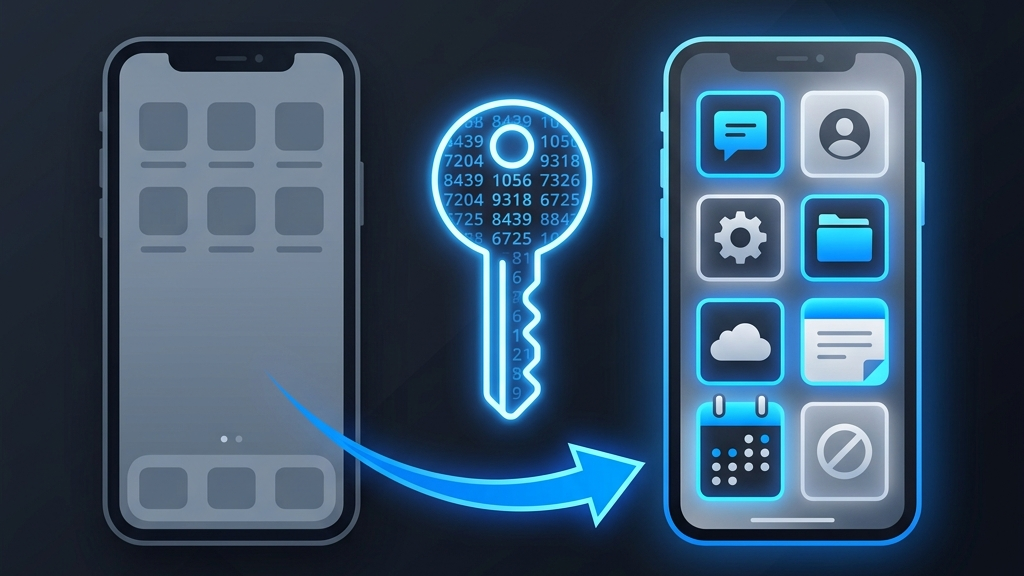
- ✓ With encrypted backup + a recovery key, the whole move is a two-minute restore.
- ✓ Already wiped it? You'll need backup codes or each service's recovery flow.
Why 2FA needs its own moving plan
Authenticator secrets are deliberately stored in your phone's most protected storage — on iPhone, the Keychain, often marked this device only. That's exactly what you want day to day, but it means a standard phone-to-phone migration may not bring your codes along. People discover this at the worst moment: old phone wiped and traded in, new phone asking for a six-digit code it can't produce.
Before anything: the pre-flight checklist
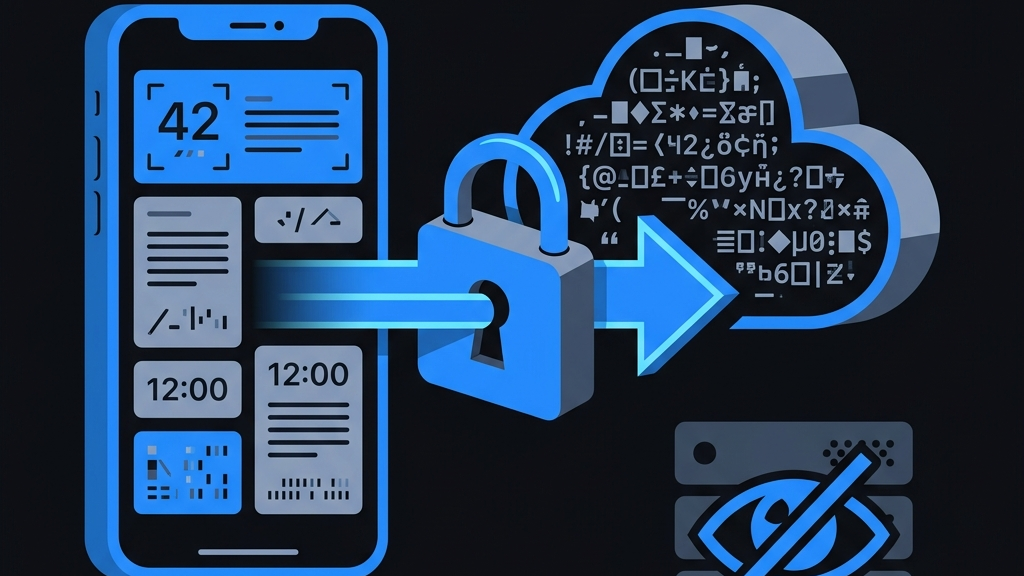
- 1. Confirm your backup story. In Moat, make sure end-to-end encrypted backup is on and your recovery key is written down somewhere that isn't the phone. (Backup is encrypted on-device before upload — that's the zero-knowledge part.)
- 2. Inventory your accounts. Skim the list in your current authenticator so you'll notice if anything goes missing after the move.
- 3. Locate stray backup codes. The one account without a clean transfer path is much easier to fix while the old phone still works.
Path A — restoring from encrypted backup (Moat → Moat)
- 1. Install Moat on the new phone.
- 2. Sign in and choose restore, then enter your recovery key. Decryption happens on the device — the key never goes to a server.
- 3. Watch the codes appear and check a couple against the old phone. Done.
If you keep sync enabled, this also stops being a "migration" at all — every device you sign in to stays current, and one lost phone is never again a single point of failure.
Path B — coming from Google Authenticator (or similar)
- 1. On the old phone, open Google Authenticator and choose Transfer accounts → Export accounts. It shows a QR code (large account lists may span several).
- 2. On the new phone, scan that QR with Moat — every account imports in one step. A screenshot of the QR works too.
- 3. Verify a few codes side by side, then clean up the export screenshots if you took any.
More detail on what to look for when changing apps — not just phones — is in our switching guide.
The golden rule: the old phone is your safety net. Keep it powered and untouched until you've generated working codes on the new phone and logged in to at least one important account with them. Only then wipe, sell, or trade it in.
Already wiped the old phone?
Take a breath — there are still paths back in: the backup codes services gave you at 2FA setup, a second 2FA method you may have registered, or each provider's identity-verification recovery flow. We've written a dedicated walkthrough: recovering your 2FA after losing your phone. Once you're back in, turn on encrypted backup so the next phone is a two-minute restore instead of a rescue mission.
The short version
Backup on, recovery key on paper, codes verified on the new phone — then wipe the old one. Do those in order and a new phone never costs you an account.