 Moat
Moat
✦ Key takeaways
- ✓ 2FA = your password plus a second, different kind of proof — usually a device you hold.
- ✓ It defeats the most common attack there is: someone else using your stolen or reused password.
- ✓ Not all 2FA is equal — authenticator apps and hardware keys beat SMS codes.
- ✓ Setup takes about a minute per account, starting with email and banking.
Logging in with just a password is one-factor authentication: one piece of evidence, something you know. The trouble is that passwords leak constantly — through data breaches, phishing pages, and reuse across sites. If a password is the only lock on the door, anyone who learns it walks right in, from anywhere in the world.
Two-factor authentication (2FA) asks for a second, different kind of evidence before letting anyone in. Security folks group evidence into three factors:
- Something you know — a password or PIN.
- Something you have — your phone, an authenticator app, a hardware key.
- Something you are — a fingerprint or your face.
Two factors means two different categories. A password plus a security question is still one factor (two things you know). A password plus a six-digit code from your phone is genuinely two — and that combination is what most people mean by 2FA.
2FA vs MFA: MFA (multi-factor authentication) is the umbrella term for two or more factors. 2FA is the everyday case — exactly two. If a site offers "MFA", it's the same idea.
Why a second factor changes everything
Think about what an attacker needs. With a password alone, a single leaked database or one convincing phishing email is enough — and they can try it from another continent. With 2FA enabled, the stolen password is no longer sufficient: they'd also need the thing you're holding. The attack stops being "type the password" and becomes "obtain a specific physical object or compromise a specific device" — a dramatically harder, riskier, less scalable crime.
The types of 2FA, ranked
From weakest to strongest, the common second factors are:
1. SMS codes — better than nothing
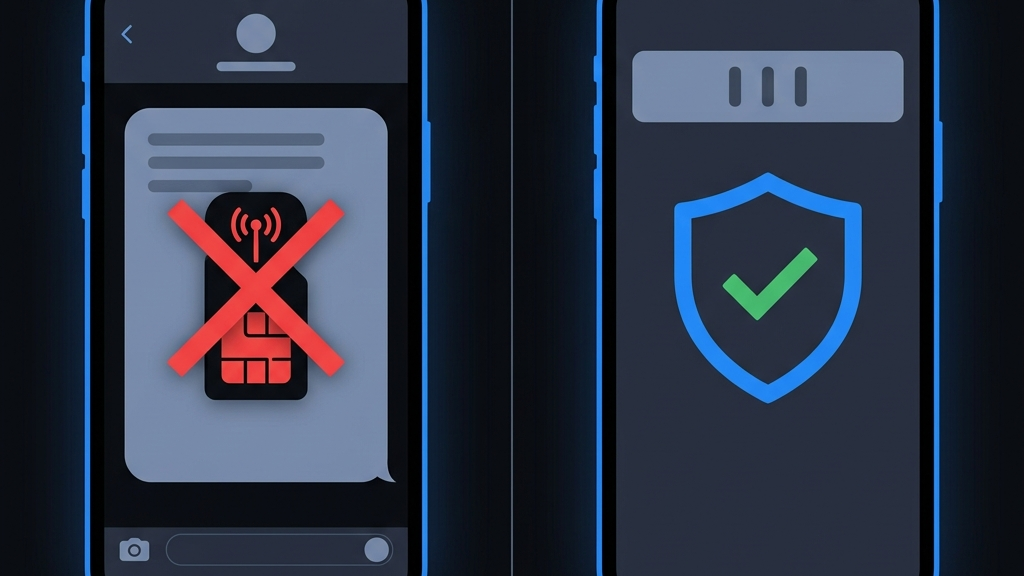
The service texts you a code. It works, but text messages can be redirected by SIM swapping and network-level attacks, and they're easy to phish. Use SMS only when a service offers nothing better.
2. Authenticator apps (TOTP) — the sweet spot
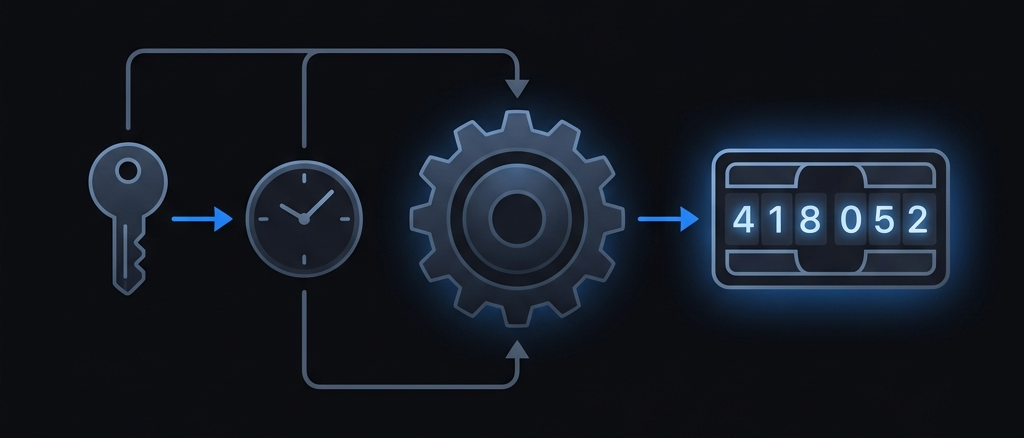
An authenticator app like Moat stores a shared secret on your device and uses it, plus the current time, to compute a fresh six-digit code every 30 seconds — entirely offline, using the open TOTP standard. There's no message to intercept and no carrier to trick. This is the best widely supported upgrade for most people, and it's free.
3. Hardware keys & passkeys — the high end
A physical security key or a passkey uses cryptography bound to the real website, which makes phishing nearly impossible. Support is growing but not universal — which is why an authenticator app remains the practical foundation, with keys or passkeys layered on where they're offered.
How to set 2FA up (about a minute per account)
The flow is nearly identical everywhere:
- 1. Open the service's Security or Account settings and look for "two-factor authentication", "2-step verification", or "authenticator app".
- 2. The site shows a QR code. Scan it with your authenticator app — the shared secret is saved on your device.
- 3. Type the six-digit code the app shows to confirm, and save any backup codes the service gives you.
Start with the accounts that can reset everything else: your email first, then banking, then social and shopping. And before you ever change phones, make sure your codes can come with you — see moving 2FA to a new phone and recovering 2FA after losing your phone.
The short version
Passwords get stolen; that's a when, not an if. 2FA means a stolen password isn't enough. Use an authenticator app wherever you can, keep SMS only as a last resort, and add passkeys or hardware keys for your most important accounts as support arrives.